1689072975.png)
All About CUET CBT Exam 2027
June 25, 2026
Quick Answer: The CUET CBT exam is held on a computer at an exam centre. You answer questions using a mouse. The screen shows the question, answer options, timer, and a question palette. The timer counts down on the screen, and the test ends by itself when the time is over.
Key Takeaways
- The CUET CBT exam is held in Computer Based Test (CBT) mode only.
- Each test paper has 50 compulsory questions and 60 minutes.
- You use the question palette to track answered, unanswered, and review questions.
- The keyboard is disabled during the exam, and answers are entered with the mouse or on-screen keyboard.
- The test is auto-submitted when the timer reaches zero.
What you’ll get on this page: In this page, you’ll get to know about the CUET CBT exam in a simple way. You will learn how login works, what the colors mean, what each button does, how to move between questions, and how to prepare before exam day, so the screen feels easy and familiar.
What Is the CUET Computer Based Test (CBT)?
The CUET CBT Exam is an online test held at an exam centre. You do not write answers on paper. Instead, you read the questions on a computer and click your answers with a mouse. The official CUET (UG) 2026 bulletin says the exam is held in CBT mode only and the question paper has objective-type MCQs.
Each test paper in CUET 2026 has 50 questions, and all questions are compulsory. The time for each test paper is 60 minutes. For every right answer, you get 5 marks. For every wrong answer, 1 mark is deducted. That is why it is very important to learn the screen before the real CUET CBT Exam starts.
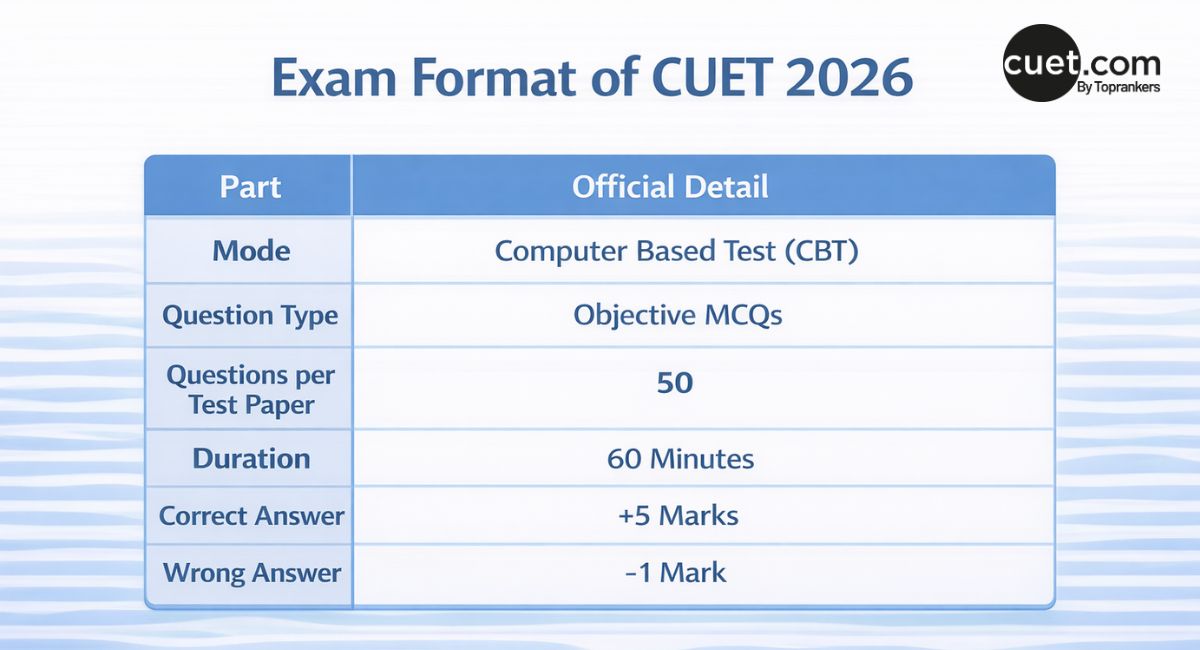
Here is a quick look at the exam format:
| Part | Official detail |
| Mode | Computer Based Test (CBT) |
| Question type | Objective MCQs |
| Questions per test paper | 50 |
| Duration | 60 minutes |
| Correct answer | +5 marks |
| Wrong answer | -1 mark |
Many students know the syllabus but still feel nervous in the CUET CBT Exam because the screen looks different from a school exam. That is normal. The good news is that the interface and CUET exam pattern is simple once you know where the timer, buttons, and question numbers are.
How Do You Log In to the CUET Exam System?
On exam day, each student gets a computer terminal linked to their roll number. NTA says you must sit only at the computer given to you. If you move to another system on your own, your candidature may be cancelled.
For login, the screen shows a login ID and password area. After login, the welcome screen shows your photograph and the CUET subject you chose. Then you see the exam instructions. This is why students should check the screen carefully before the CUET CBT Exam begins.
The instructions matter. They tell you how the timer works, how the buttons work, and how questions are marked on the palette. The bulletin also says the clock is set on the server. The countdown timer appears on the top right of the screen. When the timer reaches zero, the exam ends by itself. You do not need to click submit.
One more useful point: if your computer or mouse stops working during the CUET CBT Exam, NTA says another system will be given to you and the lost time will be adjusted on the server. That should help students stay calm.
What Do the Colors in the CUET Question Palette Mean?
The CUET CBT Exam screen has a question palette on the right side. This box shows the status of every question. The colors and symbols help you know what you have done and what is left. NTA shows these meanings in the 2026 bulletin.
| Color / status | Meaning |
| Grey / Not Visited | You have not opened the question yet |
| Red / Not Answered | You opened it but did not answer |
| Green / Answered | You answered the question |
| Purple / Marked for Review | You want to come back later |
| Purple with green mark | Answered and marked for review |
The review colors are very important in the CUET CBT Exam. If a question is answered and marked for review, it will still be considered for evaluation. But if a question is only marked for review and no answer is saved, it will not be considered for evaluation.
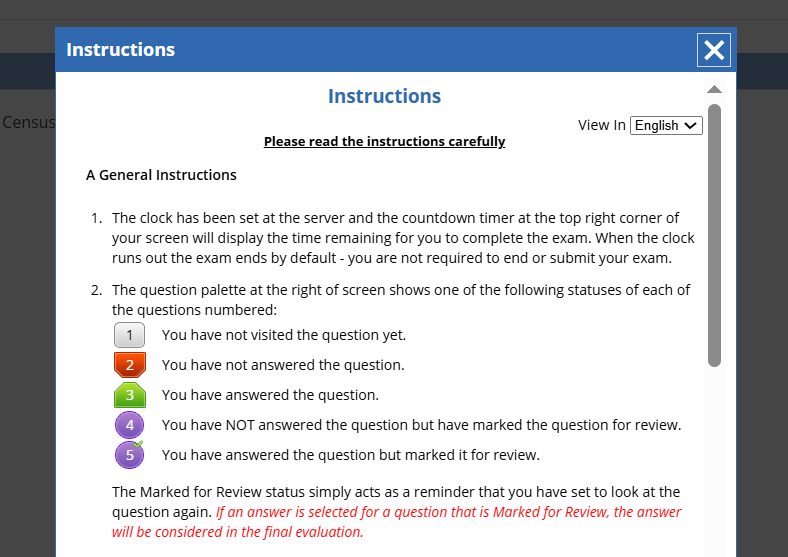
This means the question palette is not just a color box. It is a time-saving tool. In a fast exam, one quick look can tell you if you still have red or purple questions left. That helps you stay in control in the CUET CBT Exam.
How Does the CUET CBT Exam Dashboard Work?
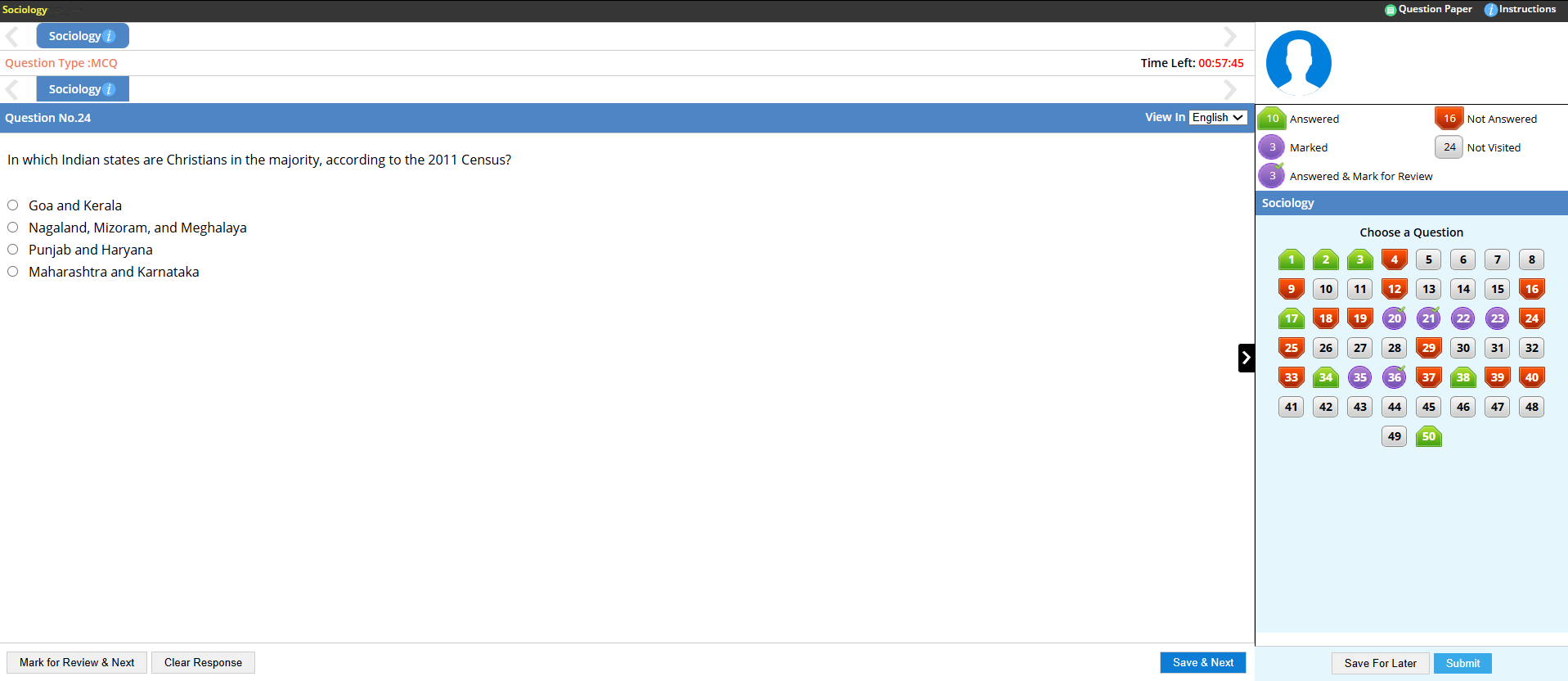
The dashboard is the full screen you use during the CUET CBT Exam. It is built to help you move easily from one question to another. On the top right, you see the countdown timer. On the right side, you see the question palette. On the top bar, you see the sections of the paper. You can click a section name to open that section.
If you click a question number in the palette, the system takes you straight to that question. But there is one very important rule: clicking a question number does not save your current answer. So always save first if you do not want to lose your answer in the CUET CBT Exam.
The bulletin also says you can move between sections and questions anytime during the allowed time. There is also a section summary shown above the question palette. This helps you see your progress without guessing.
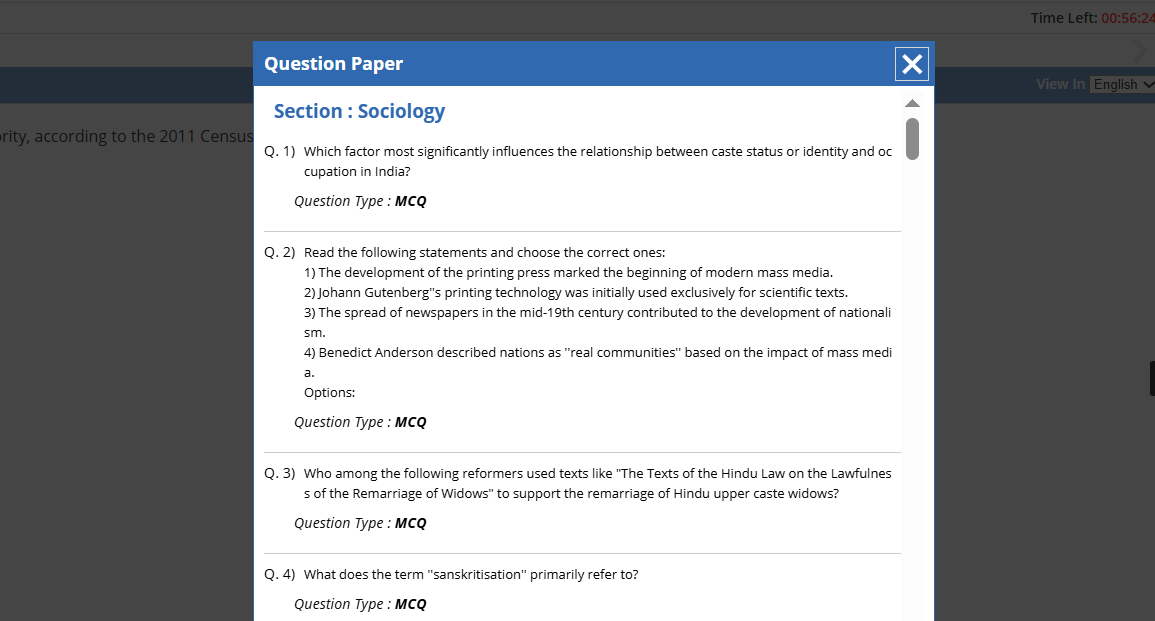
NTA also gives a few extra screen tools. You can click the “>” arrow to hide the question palette and make the question area bigger. You can click “<” to show the palette again. You can also use the Profile image on the top right to change the question paper language for the full paper. And the Question Paper icon lets you view the full paper in one place.
What Are the Important Buttons in the CUET CBT Interface?
The buttons are one of the most important parts of the CUET CBT Exam. If you learn them early, you will save time and avoid silly mistakes.
|
Button
|
What it does
|
Best use
|
| Save & Next | Saves your answer and opens the next question | Use when you are sure |
| Clear Response | Removes the selected answer | Use when you want to change an answer |
| Mark for Review & Next | Marks the question for review and moves on | Use when you want to come back later |
| Question number in palette | Opens that question directly | Use for quick jumps |
For MCQ questions, NTA says you click one option to choose it. If you want to remove that choice, click the same option again or click Clear Response. To save the answer, you must click Save & Next.
There is one more thing students should know for the CUET CBT Exam. During the exam, the keyboard attached to the computer is disabled. If a question needs typed input, the system uses an on-screen virtual keyboard and the mouse. For normal MCQs, you just click the answer option.
Also, rough sheets are given at the centre for calculations and rough work. At the end of the test, you must hand them to the invigilator.
How Can You Use the CBT Interface to Save Time?
The best way to save time in the CUET CBT Exam is to understand which questions are easy and which are hard.
- First, answer easy questions fast. When you are sure, click Save & Next to keep moving and build confidence.
- Second, do not sit too long solving hard questions. If you need more time, mark it for review and move on. Later, you can return to the question palette. This stops one hard question from eating up your time in the CUET CBT Exam.
- Third, use the palette smartly. Near the end, look for red and purple boxes. Red means you saw the question but did not answer it. Purple means you wanted to return. This last check can help you catch easy marks.
- Fourth, remember this rule: clicking a question number directly does not save your answer. Many students lose time and marks here. Save first, then jump. This one habit can make your CUET CBT Exam smoother.
How Should You Prepare for the CUET Computer-Based Test?
The best way to prepare for the CUET CBT Exam is to practice on a real screen before the real test. NTA says a sample/mock test is available on its website for hands-on practice, and NTA’s mock test page also says the test is there to help students understand the CBT process.
Start with one mock so you can learn the layout. Then practice more so the timer, palette, and buttons start to feel normal. Good mock test practice is not only about answers. It is also about learning the rhythm of the CUET CBT Exam.
You should also read the official exam instructions before exam day. Keep your admit card ready, know your exam city in advance, and reach the centre on time. That way, you can focus on the screen and not on stress.
In the end, the CUET CBT Exam isn't scary once you know the screen. The layout is fixed, the tools are simple, and the colours clearly show your overall progress.

Download CUET Study Material [UG]
Fill your details
Frequently Asked Questions
What is the CUET CBT Exam?

Can I use the keyboard in the CUET CBT Exam?
What does the question palette do in the CUET CBT Exam?
What happens when the CUET CBT Exam timer ends?
Are “answered and marked for review” questions checked?
How should I prepare for the CUET CBT Exam interface?

Chetanya Rai
Communications Executive (CUET)
SHARE